Editing Features
February 11, 2026
The core text editing capabilities that make Fresh feel like a modern editor in your terminal.
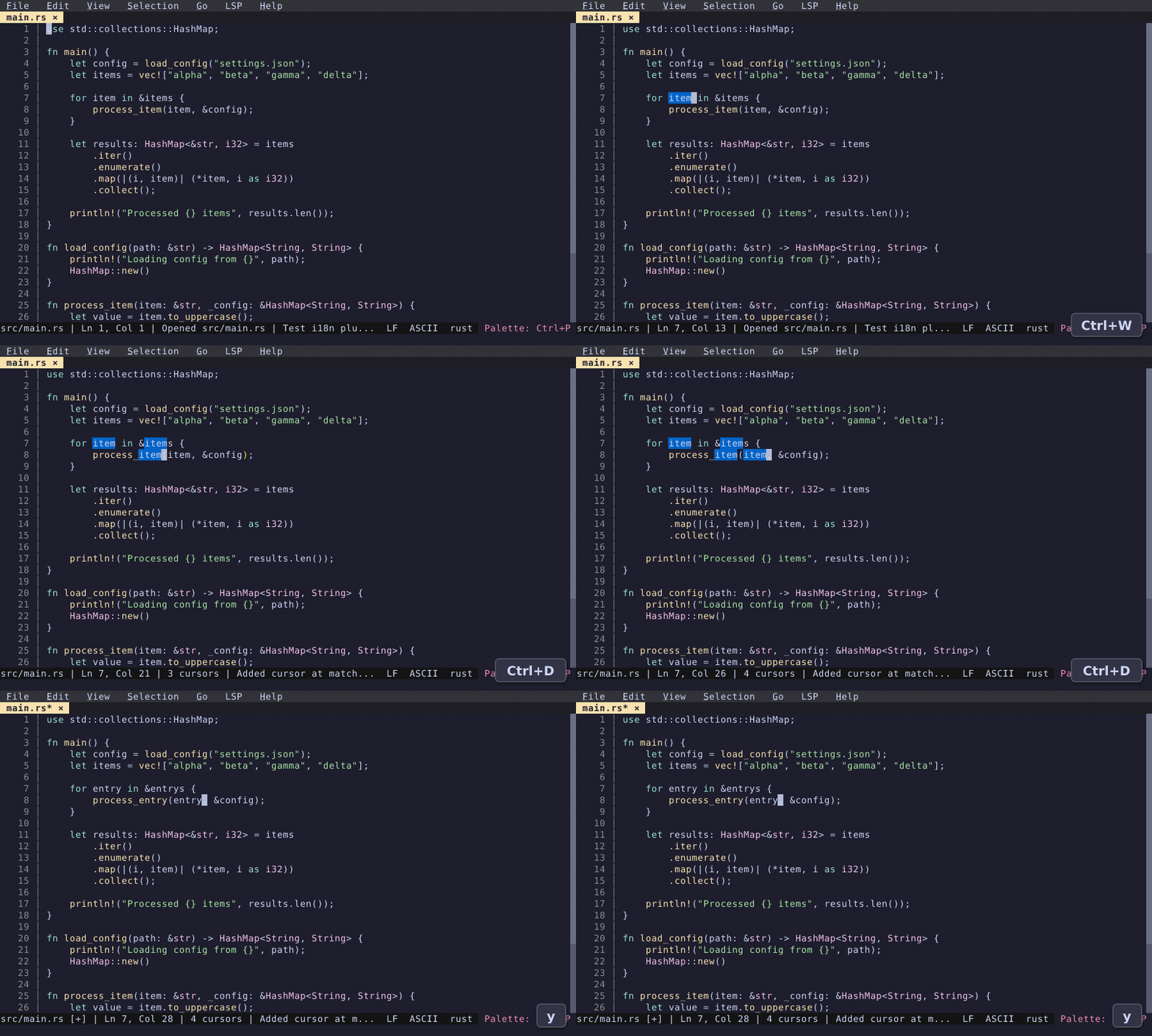
Multi-Cursor Editing
Place your cursor on a word, press Ctrl+W to select it, then Ctrl+D to select the next occurrence. Repeat to select more. Type to replace them all simultaneously.
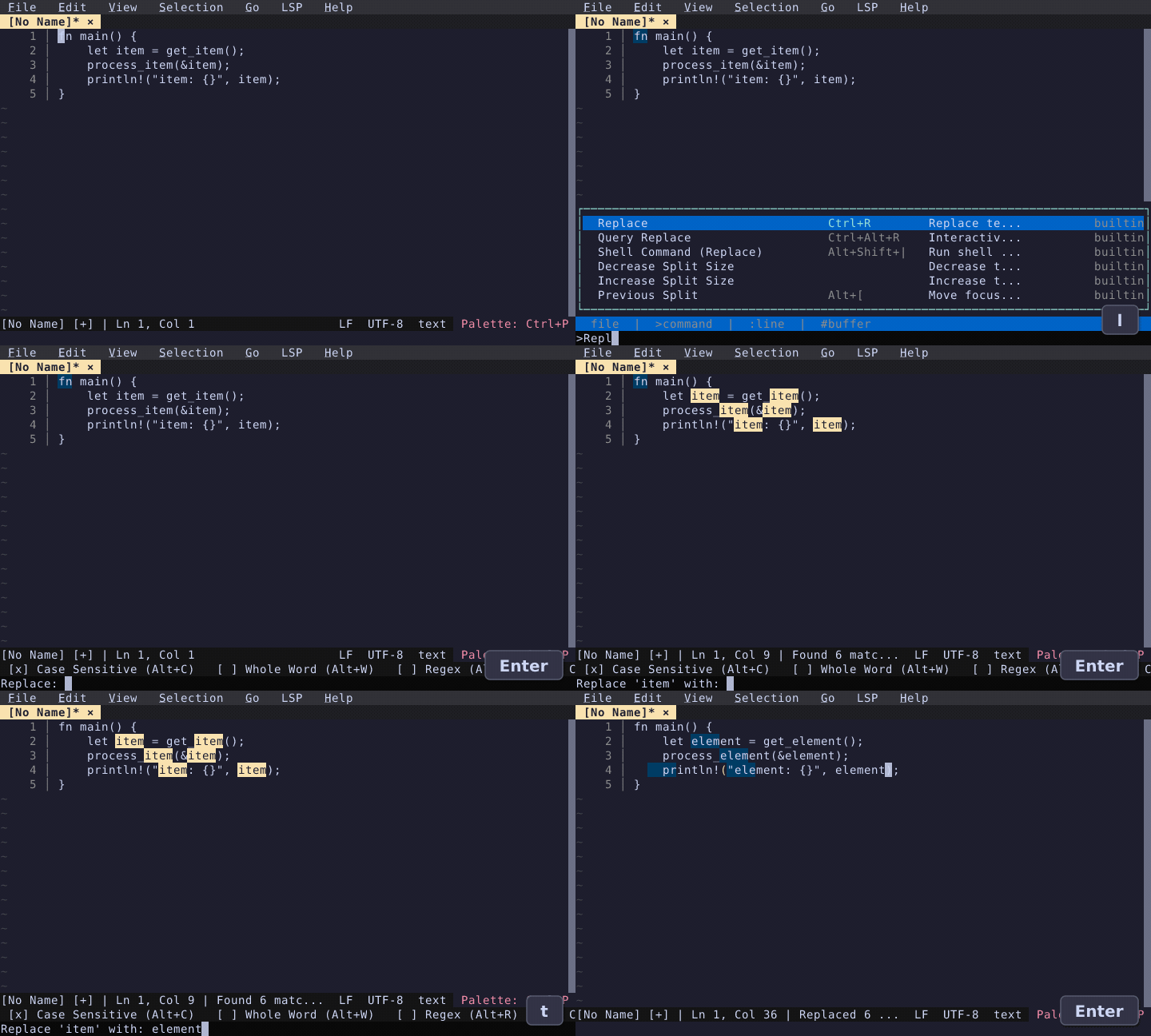
Search & Replace
Ctrl+R opens find-and-replace with live highlighting as you type. Supports regex with capture groups ($1, $2), find-in-selection, and a confirm-each toggle. (Ctrl+H is deliberately not used: terminals transmit it as Backspace, so Fresh binds it to delete-word-backward instead.)
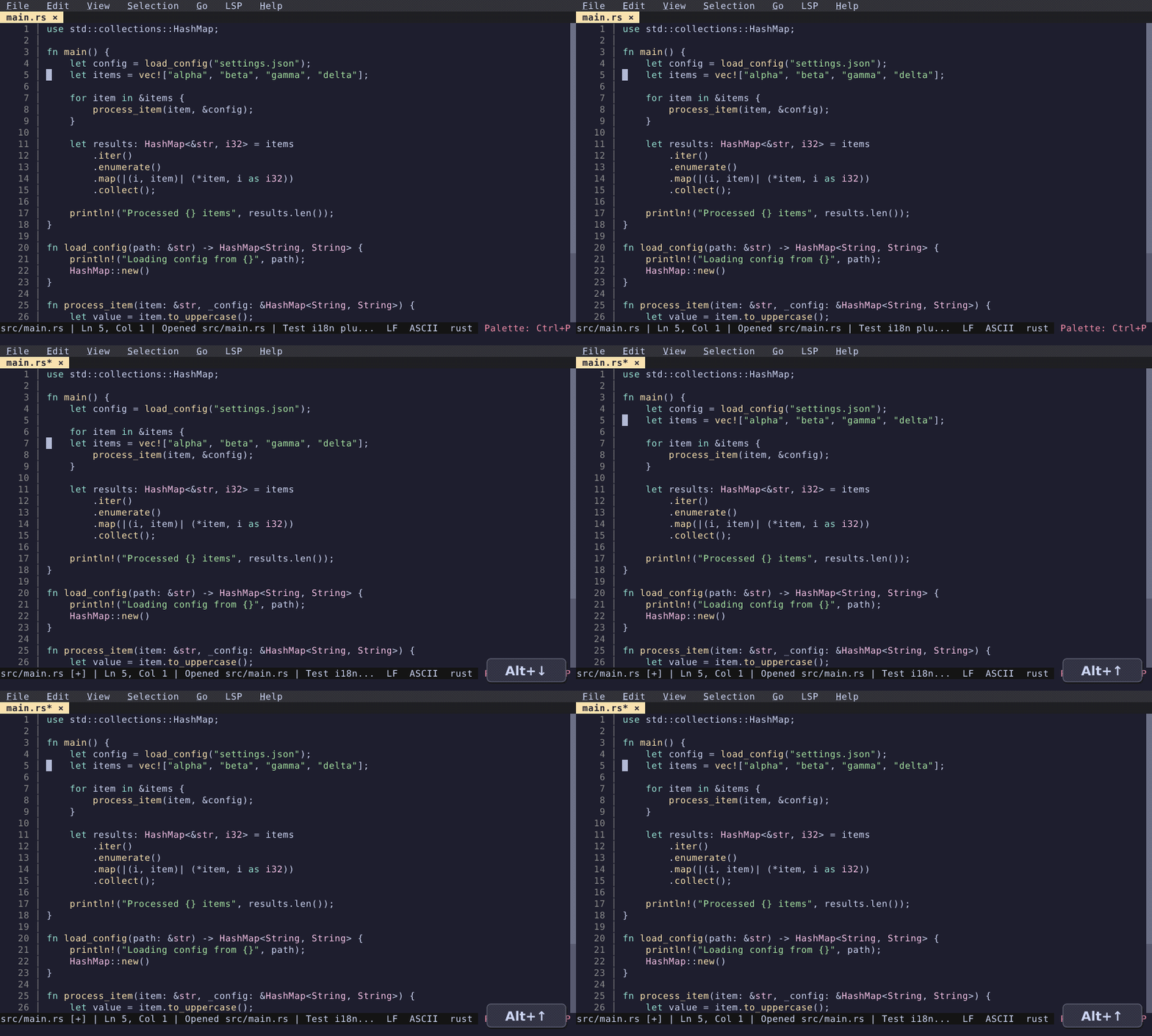
Move Lines
Alt+↑ and Alt+↓ move the current line (or selected lines) up and down. Works with multi-cursor selections.
Block Selection
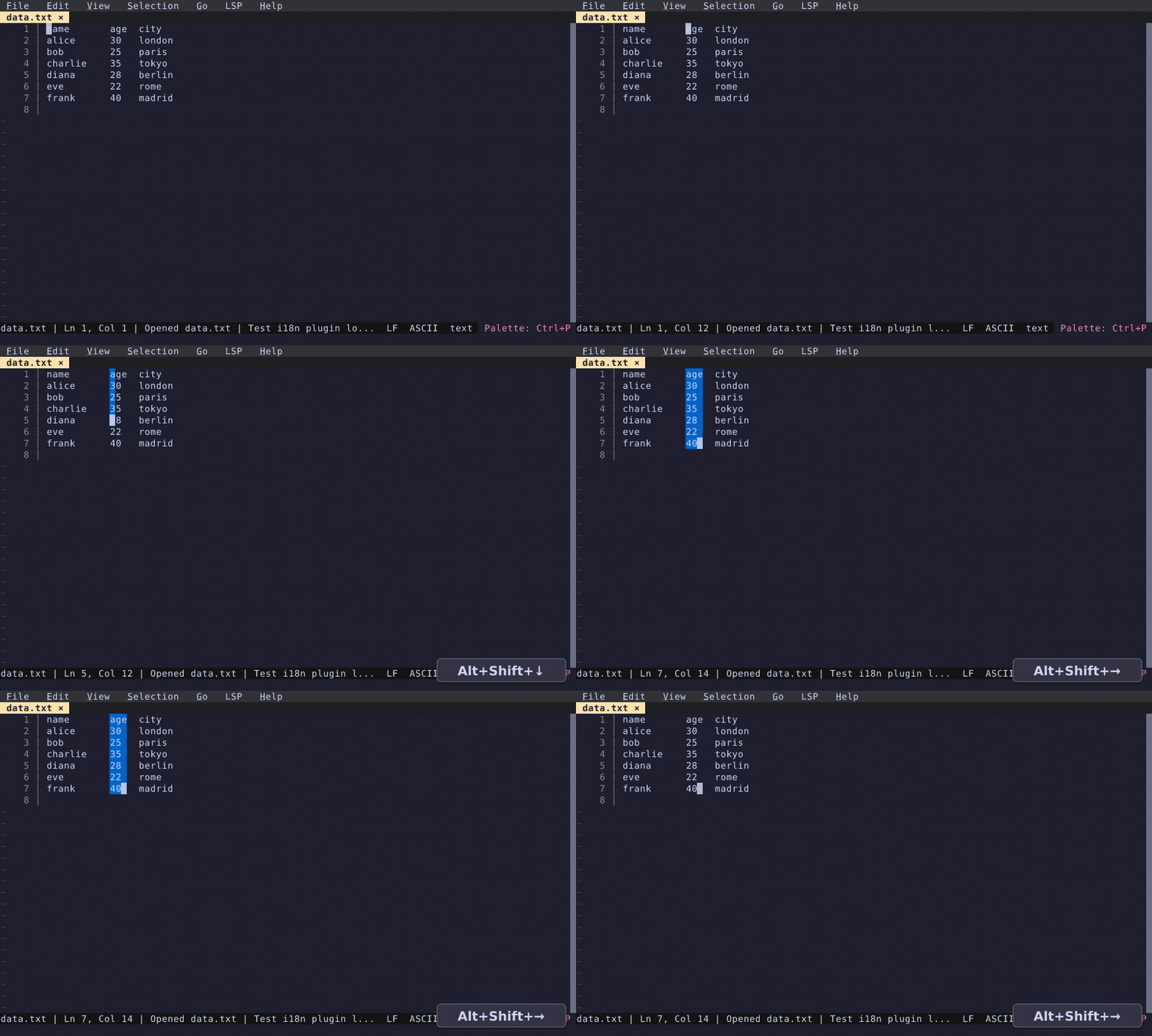
Alt+Shift+Arrow creates rectangular column selections — useful for editing aligned data, CSV columns, or repetitive code patterns. Block selections convert to multi-cursors when you start typing.
Triple-Click Selection
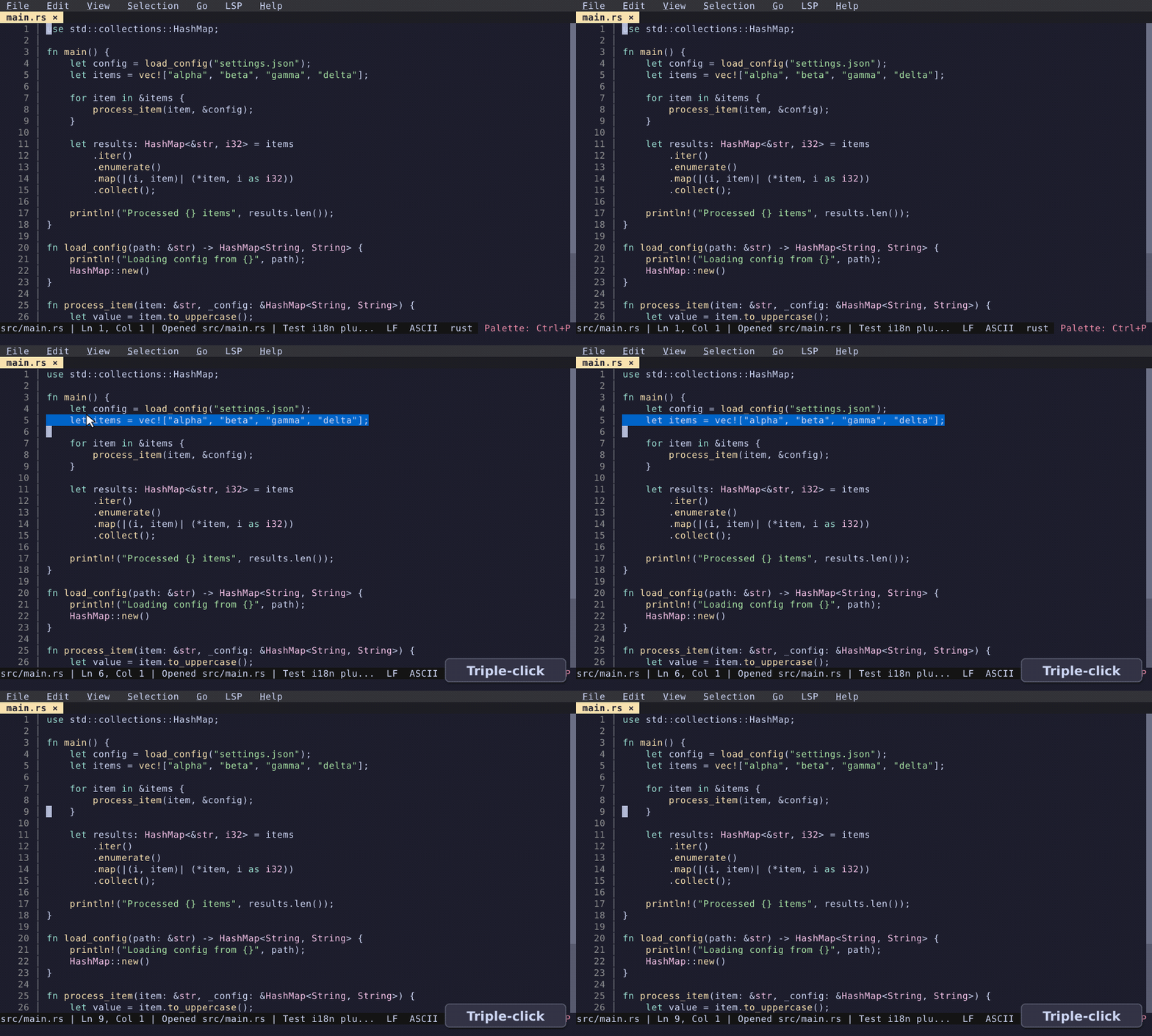
Triple-click to select an entire line — matching the behavior you'd expect from any modern editor.
Sort Lines
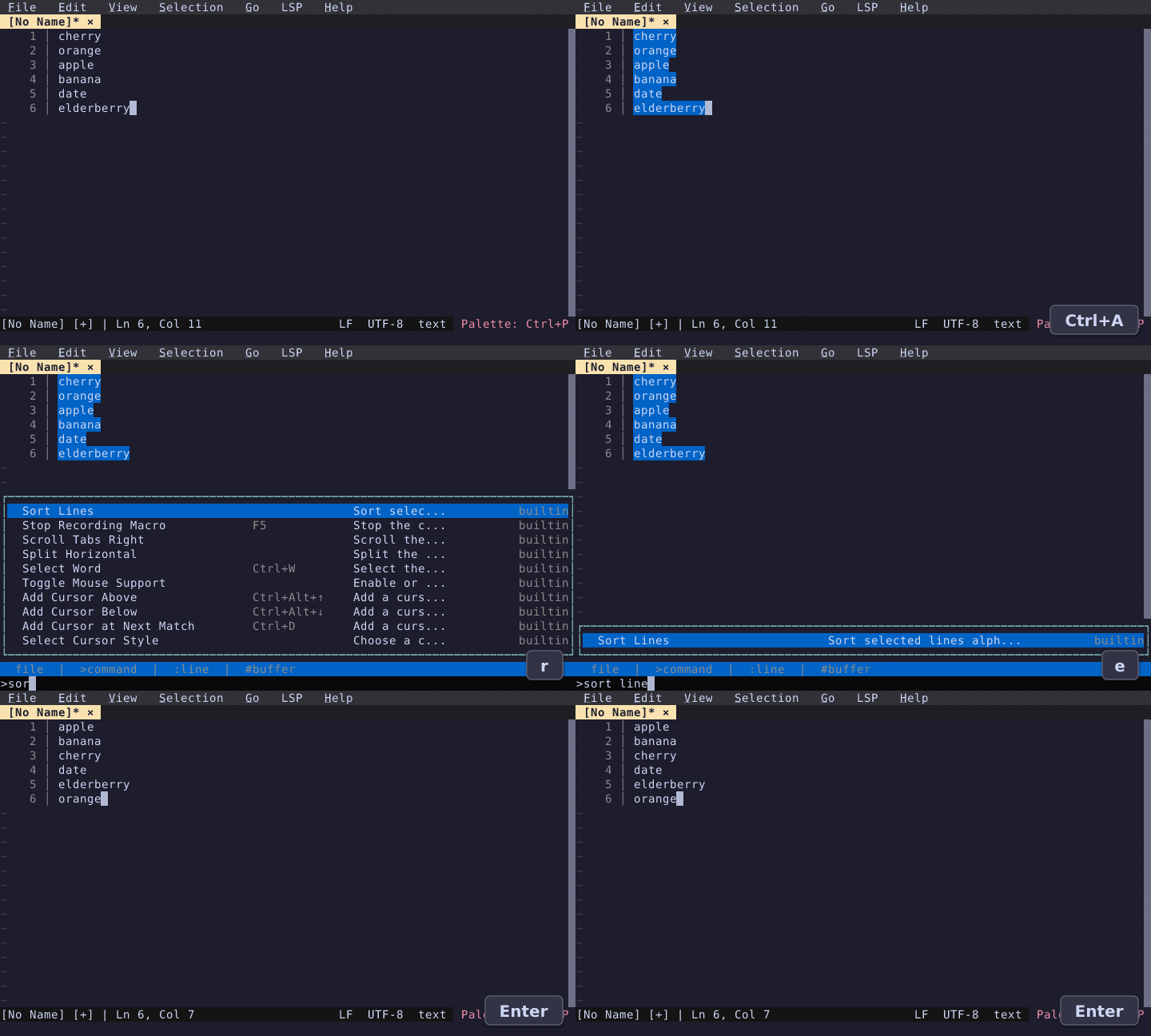
Select lines and sort them alphabetically via the command palette.
Case Conversion
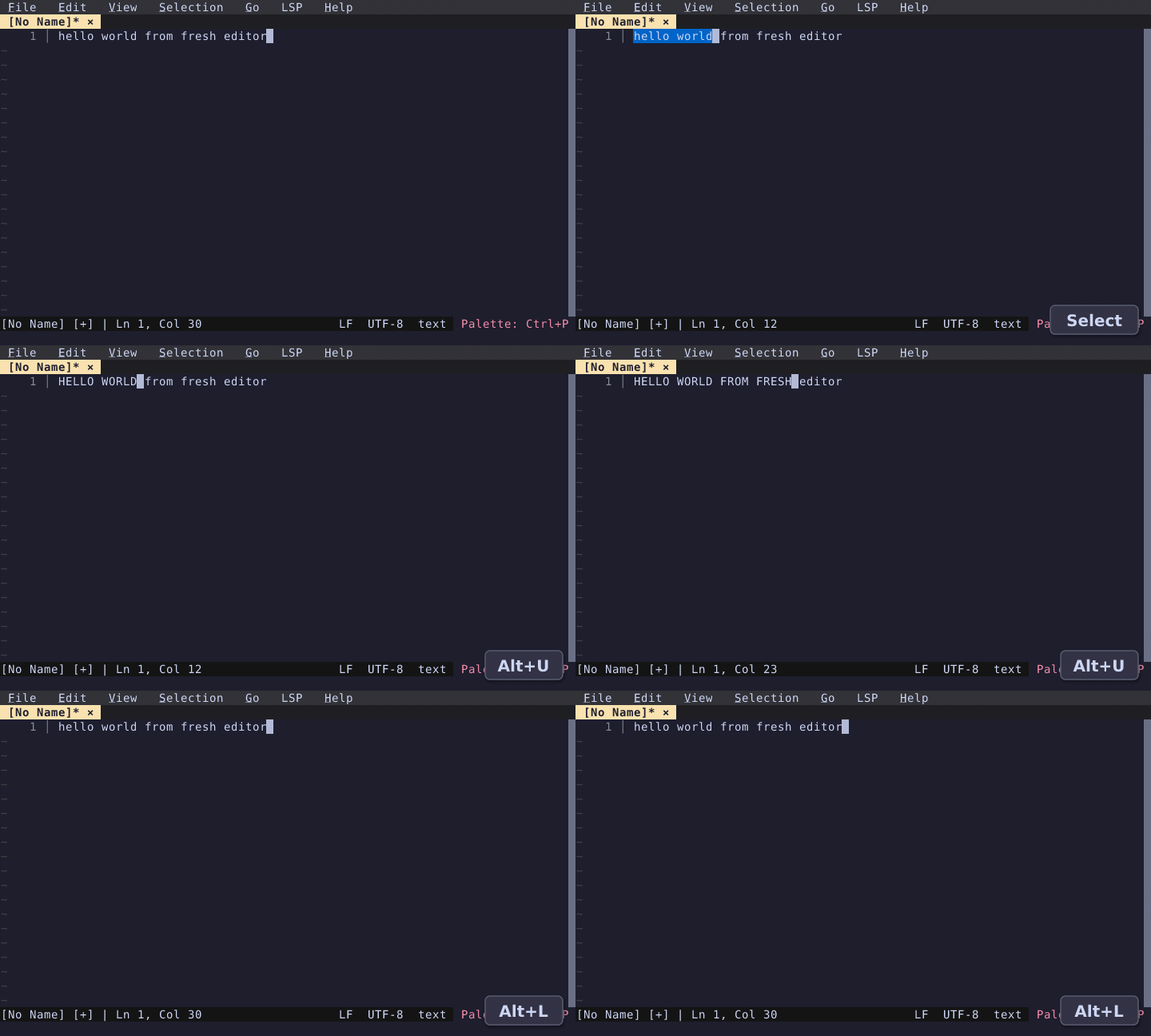
Select text and press Alt+U for uppercase or Alt+L for lowercase. When nothing is selected, it converts the word under the cursor.
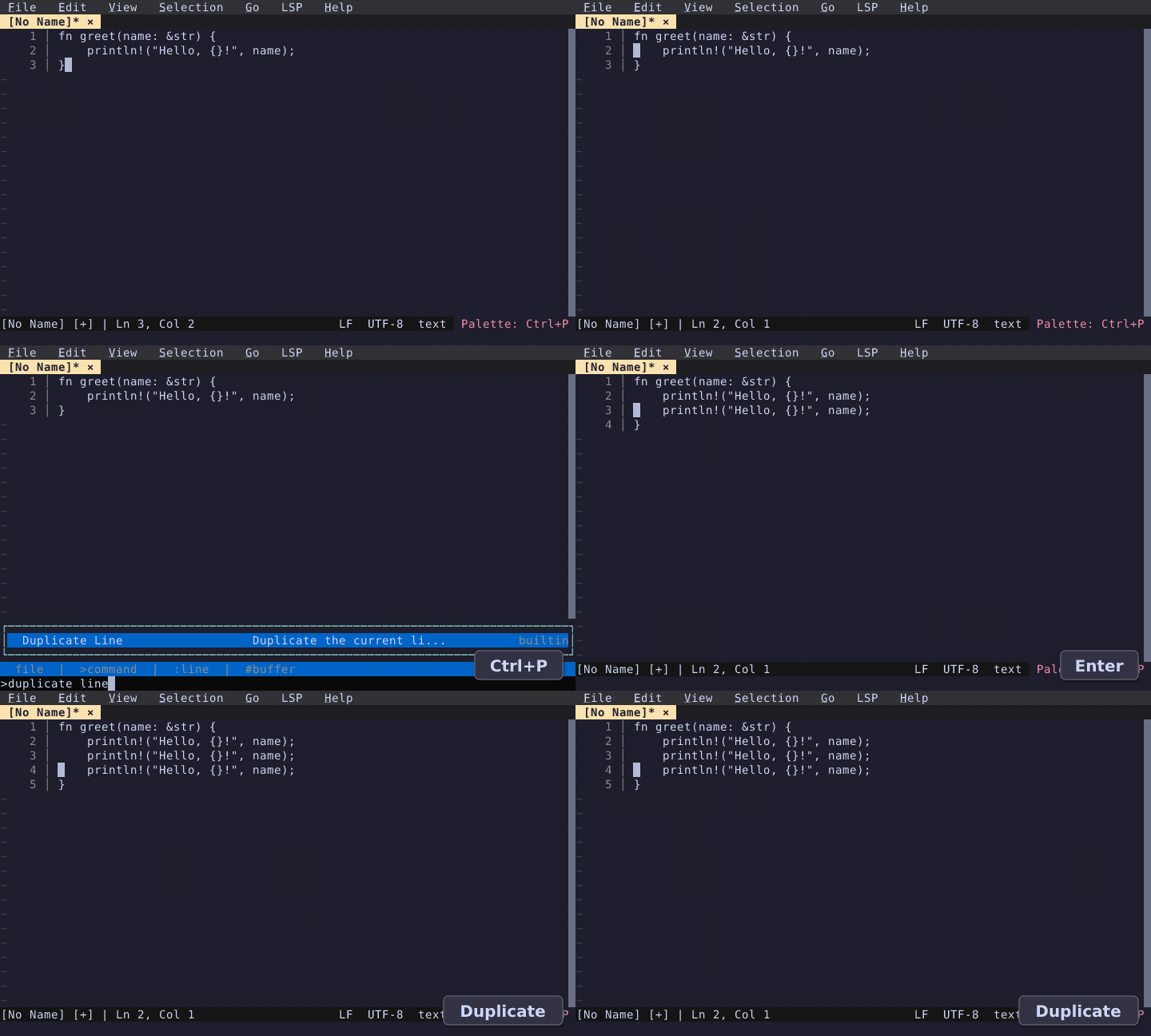
Duplicate Line
Duplicate the current line instantly via the command palette. Works with selections too.
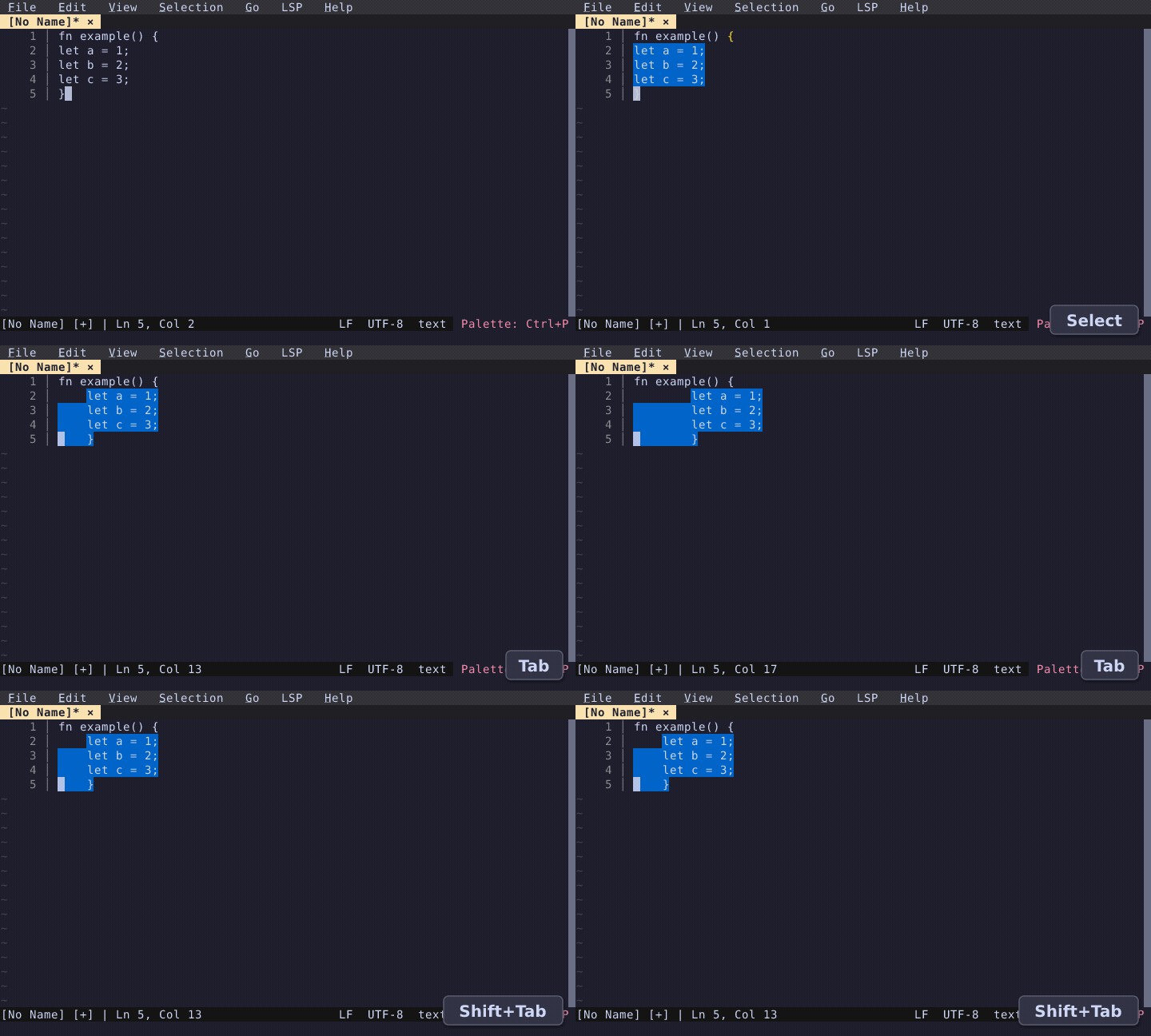
Tab Indent / Dedent
Select lines and press Tab to indent, Shift+Tab to dedent. Respects per-language tab settings (spaces vs. tabs).